
Running Google Ads sounds more complicated than it is. The interface has evolved significantly over the years — there are more options, more campaign types, and more automated features than there were a decade ago — but the underlying logic has not changed. You choose who to show your ad to, what to say, where to send them, and how much you are willing to pay. Everything else is detailed.
That said, the details matter. A Google Ads campaign set up without understanding those details will spend money and produce very little. The businesses that get good results from Google Ads are not necessarily the ones with the biggest budgets. They are the ones that took the time to set things up correctly before switching on the spend.
This guide walks through the complete process — from creating your account to launching your first campaign — with clear explanations of every decision that actually affects performance. If you have been putting off starting Google Ads because the platform felt overwhelming, this is where that stops.
 Click the blue “+” button and select “New Campaign.”
Google will ask you to choose a campaign goal:
 This is where most beginners make their first mistakes. Work through each setting carefully.
Campaign name: Give it a descriptive name — not “Campaign 1.” Something like “Search — Keyword Theme — Location” makes reporting much easier later.
Bidding: Google will suggest an automated bidding strategy. If this is your first campaign and you have no conversion data yet, do not use Target CPA or Maximise Conversions. These automated strategies need historical conversion data to function correctly. Without data, they will optimise toward nothing useful.
Instead, start with:
 This is the most important structural decision in the entire campaign. Ad group structure directly affects Quality Score, which directly affects cost per click and ad position.
The golden rule of ad group structure:
Each ad group should contain a tightly themed set of keywords — typically 5 to 15 — that all share the same core intent. Your ad copy for that ad group should directly reflect those keywords. Your landing page should directly reflect the ad copy.
Example:
 Google Search ads use a Responsive Search Ad (RSA) format. You provide:
What Google Ads is and how it actually works
Before clicking anything in the interface, it is worth understanding the mechanics. Google Ads operates on an auction system. Every time someone searches on Google, an automated auction runs in milliseconds to determine which ads appear and in what order. Your ad’s position in that auction is not determined by your bid alone. It is determined by your Ad Rank, which is calculated as: Ad Rank = Bid × Quality ScoreWhat Quality Score means in practice
Quality Score is Google’s assessment of how relevant your ad and landing page are to the search query. It is scored from 1 to 10 and is made up of three components:- Expected click-through rate — how likely Google thinks someone is to click your ad based on historical performance
- Ad relevance — how closely your ad copy matches the intent of the search query
- Landing page experience — how useful, fast, and relevant your landing page is for the visitor who clicks
Google Ads campaign types: which one to start with
Before creating a campaign, you need to choose the campaign type. Each one serves a different purpose and reaches people at a different point in their decision-making journey.| Campaign type | How it works | Best for | When to use |
| Search | Text ads shown in Google search results | Capturing active demand — people searching for what you offer | The starting point for most businesses |
| Display | Image/banner ads shown across websites and apps | Brand awareness and remarketing | Once you have a Search campaign running |
| Shopping | Product listings with image and price in search | Ecommerce stores selling physical products | If you sell products online |
| Performance Max | AI-driven ads across all Google channels | Scaling when you have strong conversion data | After accumulating 50+ conversions per month |
| Video | Video ads on YouTube and Google Display Network | Brand awareness and product consideration | For businesses with video creative |
| App | Ads that drive app installs and engagement | Mobile app promotion | App-specific use case |
The right starting point for most businesses
For the vast majority of businesses — service providers, local businesses, agencies, clinics, schools, consultants — Search campaigns are the correct starting point. They target people who are actively searching for what you offer, which means the intent is already there. You are not interrupting someone scrolling social media; you are appearing in front of someone who typed in a query directly related to your business. Start with Search. Add other campaign types once your Search campaign is generating consistent conversion data.Step-by-step: how to create your first Google Ads campaign
Step 1 — Set up your Google Ads account
Go to ads.google.com and sign in with your Google account. If you do not have one, create one first — your Google Ads account will be linked to it. When you first open Google Ads, it will try to walk you through a “Smart campaign” setup. Skip this. Smart campaigns offer minimal control over targeting, keywords, and bidding. Switch to Expert Mode before proceeding. Look for the link that says “Switch to Expert Mode” at the bottom of the initial setup screen. This gives you access to the full campaign creation interface. A few things to complete before creating your first campaign:- Link Google Analytics — Go to Tools > Linked Accounts and connect your Google Analytics property. This allows you to see what happens after the click, not just the click itself.
- Set up conversion tracking — Without this, you cannot tell which keywords and ads are generating leads or sales. More on this below.
- Set your billing — Add a payment method under Billing settings.
Step 2 — Create a new campaign and choose your objective
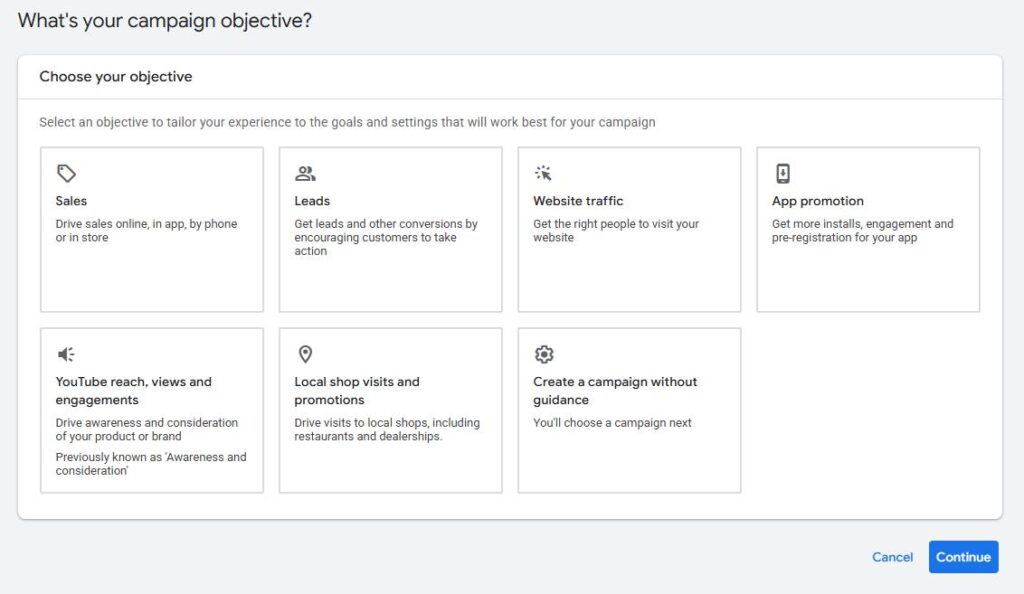
Click the blue “+” button and select “New Campaign.”
Google will ask you to choose a campaign goal:
- Sales
- Leads
- Website traffic
- Brand awareness and reach
- App promotion
- Local store visits
- Tick Website visits (where you want the click to go)
- You can also tick Phone calls if you want to track calls from your ads
Step 3 — Configure your campaign settings
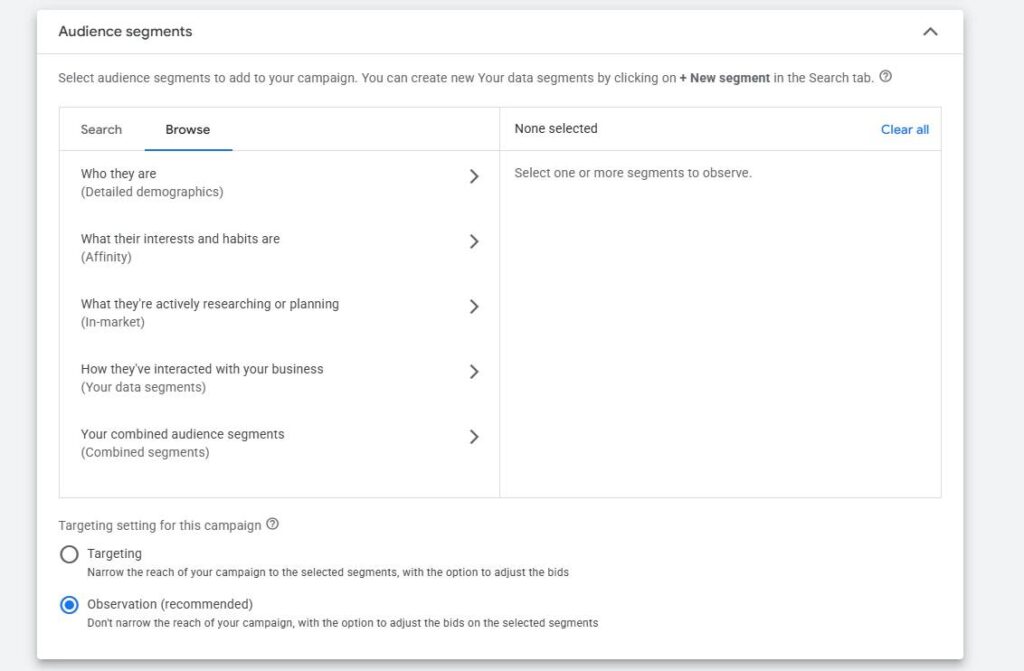
This is where most beginners make their first mistakes. Work through each setting carefully.
Campaign name: Give it a descriptive name — not “Campaign 1.” Something like “Search — Keyword Theme — Location” makes reporting much easier later.
Bidding: Google will suggest an automated bidding strategy. If this is your first campaign and you have no conversion data yet, do not use Target CPA or Maximise Conversions. These automated strategies need historical conversion data to function correctly. Without data, they will optimise toward nothing useful.
Instead, start with:
- Maximise Clicks (with a maximum CPC cap) — this gets traffic flowing so you can collect initial data
- Or Manual CPC — this gives you full control over how much you pay per click
Step 4 — Set up your ad groups and keywords
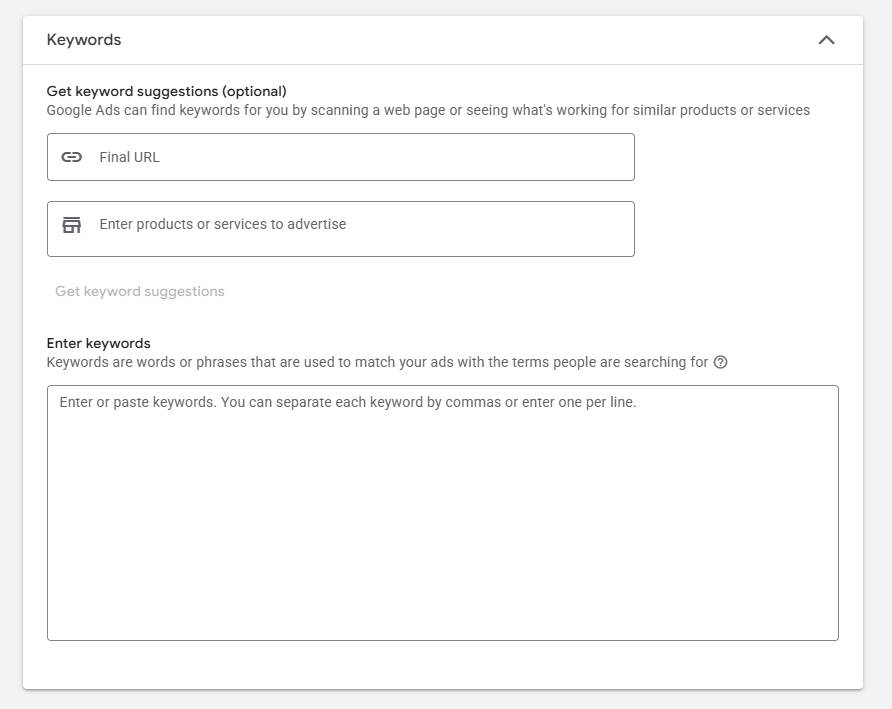
This is the most important structural decision in the entire campaign. Ad group structure directly affects Quality Score, which directly affects cost per click and ad position.
The golden rule of ad group structure:
Each ad group should contain a tightly themed set of keywords — typically 5 to 15 — that all share the same core intent. Your ad copy for that ad group should directly reflect those keywords. Your landing page should directly reflect the ad copy.
Example:
- Ad group: “SEO Agency”
- Keywords: “seo agency”, “seo company”, “hire seo agency”, “professional seo company”, “seo agency for my business”
- Ad headline 1: “SEO Agency — Results-Driven SEO”
- Landing page: Your SEO agency service page
Understanding keyword match types
Before adding keywords, understand match types. They control which search queries can trigger your ads:- Broad match — your ad can show for any search Google considers related. Useful once you have data; risky without a negative keyword list.
- Phrase match — your ad shows for searches that include the meaning of your keyword. More controlled than broad.
- Exact match — your ad shows only for searches that match your keyword closely. Highest control, lowest volume.
Step 5 — Write your ads
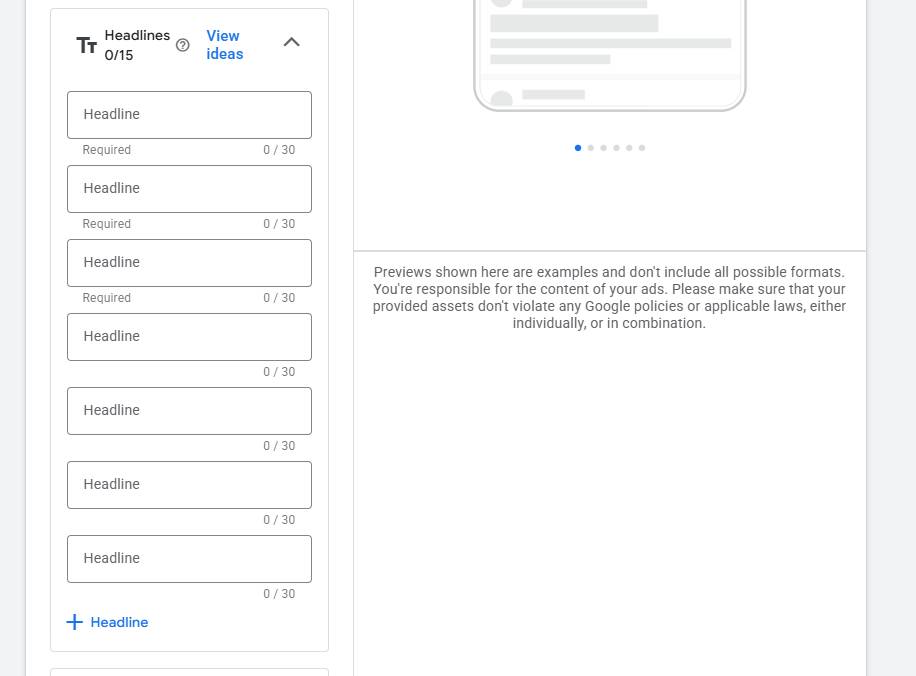
Google Search ads use a Responsive Search Ad (RSA) format. You provide:
- Up to 15 headlines (30 characters each)
- Up to 4 descriptions (90 characters each)
- Include your primary keyword in at least one headline
- Address the searcher’s intent directly — if they search “emergency plumber,” your headline should acknowledge the urgency
- Include a clear call to action — “Get a Free Quote,” “Book a Consultation,” “Call Now”
- Use your description to add detail the headline cannot: timeline, unique value, trust signals
- Do not try to be clever. Clarity outperforms creativity in search ads every time
Step 6 — Add ad extensions (now called Assets)
Ad extensions are additional pieces of information shown alongside your ad. They are free to add, increase the size and visibility of your ad in search results, and almost always improve click-through rate. Essential extensions to add from the start:- Sitelink extensions — links to other relevant pages on your site (About, Contact, specific service pages)
- Callout extensions — short phrases highlighting key benefits (“Free Consultation,” “10 Years Experience,” “Rated 5 Stars”)
- Call extensions — adds your phone number directly to the ad on mobile
- Location extension — shows your business address (link your Google Business Profile)
- Lead form extension — allows users to submit a contact form directly from the ad without visiting your site
Step 7 — Set up conversion tracking before going live
This is the step most new advertisers skip, and it is the single most important technical task in the entire setup. Without conversion tracking, you cannot answer the question that matters: are my ads generating leads or sales? You will be flying completely blind, optimising for clicks rather than outcomes. How to set up conversion tracking:- Go to Tools > Conversions > New conversion action
- Select “Website”
- Choose what you want to track: form submissions, phone calls, page visits (thank-you page)
- Install the conversion tag on your website — either directly in the page code or through Google Tag Manager
- Verify the tag is firing correctly using Google Tag Assistant
Common Google Ads mistakes and how to avoid them
Even well-intentioned campaigns make these errors. Knowing them upfront saves significant wasted spend.- Using broad match keywords without a negative keyword list — your budget will be consumed by irrelevant searches within days
- Sending all traffic to your homepage — homepages are not designed for conversion; build or designate a specific landing page for each campaign
- Setting and forgetting — Google Ads requires weekly attention: review search terms, add negatives, adjust bids, test new ad copy
- Running one ad per ad group — Google cannot optimise without multiple variants to test; always have at least two ads per ad group
- Not setting a location bid adjustment — if your conversion rate varies significantly by geography, adjust bids by location accordingly
- Ignoring the search terms report — this is the most important report in your account; check it weekly and add irrelevant terms as negatives